Managing iPhone and iPad data should not feel difficult. However, many users still struggle with iTunes because it uses a lot of system resources. On the other hand, iCloud storage becomes expensive after the free limit ends. Because of this, many Windows users now use 3uTools for device management and data protection.
The good thing about 3uTools is simple. It gives users a free way to manage, flash, back up, and restore iOS devices without complex steps. In addition, the interface is easy to understand, even for beginners.
Whether the goal is upgrading iOS, moving data to another iPhone, or saving important files, having a proper 3utools Backup and Restore plan is important. A proper backup helps prevent data loss. It also makes device migration much easier.
This guide explains the full process in very simple steps. It also explains important settings, common problems, and useful fixes.
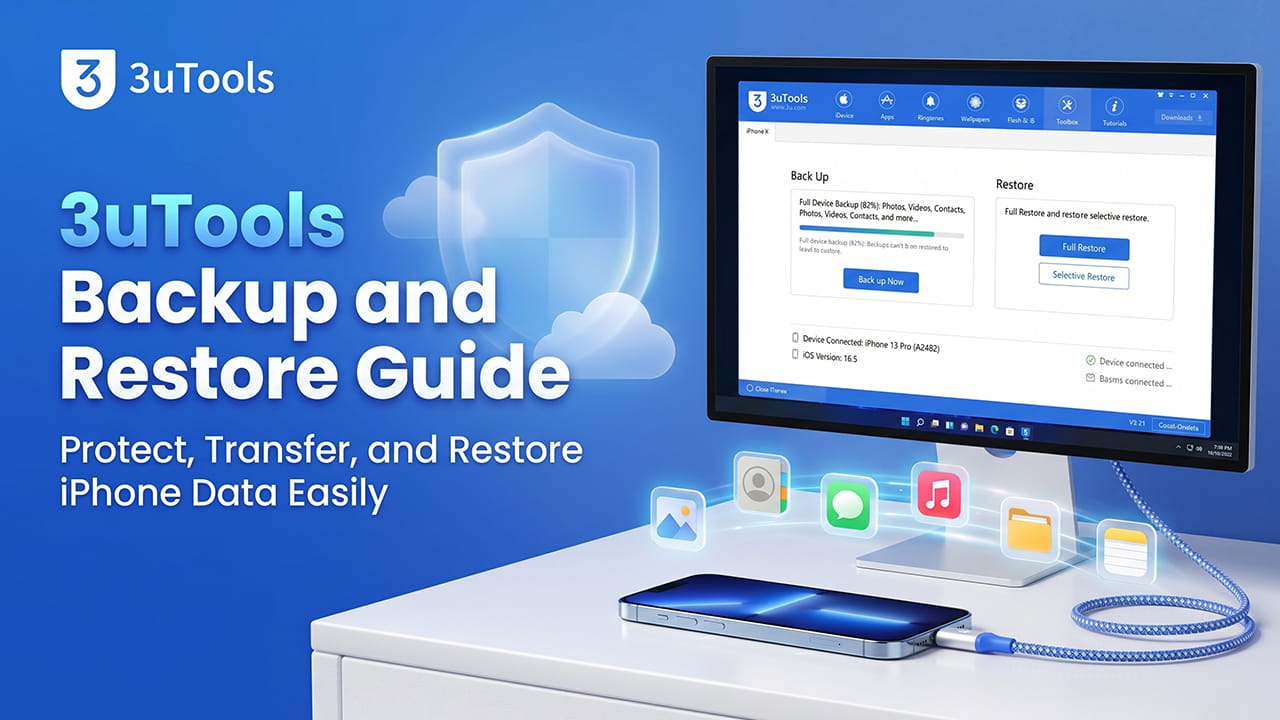
Full Backup vs Customized Backup: Which One Is Better?
Before starting any backup process, choosing the correct backup type matters a lot. 3uTools gives users two different methods:
- Full Backup and Restore
- Customized Backup and Restore
Both options work differently. Therefore, understanding the difference helps avoid mistakes later.
| Feature | Full Backup and Restore | Customized Backup and Restore |
|---|---|---|
| Data Coverage | Copies almost the whole device including settings, messages, and app data | Copies selected items only |
| Encryption | Supports password encryption | Does not support full system encryption |
| Backup Speed | Slower for large storage devices | Faster because only selected files are copied |
| iOS Compatibility | Needs equal or newer iOS version on target device | More flexible with some version limits |
A full backup works best when changing devices or restoring the complete phone environment. Meanwhile, a customized backup is useful for saving only specific data like photos, contacts, or music.
How to Perform a Full Backup with 3uTools
A full backup creates a complete copy of the iPhone or iPad storage system. This method protects most important device data.
Step 1: Connect the Device Properly
First, install the official Windows version of 3uTools on the computer. Then connect the iPhone or iPad using a certified USB cable.
After connecting the device:
- Unlock the device screen
- Tap Trust on the iPhone popup message
- Wait until 3uTools detects the hardware
A stable connection is very important. Loose cables may interrupt the backup process and damage backup files.
Step 2: Open the Backup Section
Once the device details appear on the dashboard, go to the top menu and select Toolbox.
Inside Toolbox, click:
Back up/Restore
This section contains both backup and restore tools.
Step 3: Configure Important Settings
Now click:
Back up iDevice
Before starting the process, configure two important settings.
Backup Encryption
Encryption protects sensitive data. This includes:
- Health data
- Apple Pay details
- Safari passwords
- Wi-Fi passwords
- Touch ID settings
Turn encryption on if those files are important.
However, users must remember the password carefully. If the password gets lost, the encrypted backup cannot be opened later.
Backup Storage Path
By default, many backups save to the C drive. Large backups may quickly fill system storage.
Because of this, changing the backup location is a smart idea. Save backups to:
- External hard drives
- SSD storage
- Large secondary partitions
Always make sure enough free storage space exists before starting.
Step 4: Start the Backup Process
Click:
Back Up Now
3uTools will begin collecting device data. A progress bar will show the backup status.
During this time:
- Do not disconnect the cable
- Do not restart the computer
- Avoid using the device heavily
Interruptions during backup may corrupt files.
One important thing must also be understood. App packages themselves are not included because of Apple DRM restrictions. Only app-related data and settings get saved.
How to Restore a Full Backup
The restore process is simple if the backup file is complete and not damaged.
Step 1: Connect the Target Device
Connect the new or restored iPhone to the computer using USB.
Then open:
Toolbox > Back up/Restore
Step 2: Choose Restore Data
Select:
Restore Data
3uTools will scan local backup folders automatically. After scanning, available backups will appear on screen.
Choose the correct backup using:
- Device name
- Backup date
- Backup time
Step 3: Start the Restore
Click:
Restore Now
If the backup uses encryption, enter the correct password.
The restore process will then begin. Depending on file size, this may take some time.
After completion:
- The iPhone will reboot automatically
- 3uTools may attempt app reinstall operations
- The device should remain connected until everything finishes
Disconnecting too early may interrupt setup processes.
Using Customized Backup and Restore
Some users do not want a full backup. Instead, they only need certain files.
For example:
- Travel photos
- Business contacts
- Notes
- Music collections
In these situations, the customized option works better.
How to Perform a Customized Backup
Go to:
Toolbox > Back up/Restore > Customized Back up/Restore
The screen will show multiple categories, including:
- Photos
- Music
- Contacts
- Notes
- Apps
Select the required categories and click:
Backup
Because fewer files are copied, this process usually finishes much faster than a full backup.
How to Perform a Customized Restore
To restore selected files back to the device:
- Open Customized Restore
- Select the backup archive
- Start the restore process
However, two important requirements must be followed.
Disable iCloud Sync First
iCloud syncing can block 3uTools from writing certain data.
This problem commonly affects:
- Contacts
- Notes
Before restoring, open the iPhone settings and go to:
Settings > Apple ID > iCloud
Temporarily disable syncing for the categories being restored.
After the restore finishes, iCloud syncing can be enabled again.
Allow the PicTools App for Photos
Photo restoration requires a helper app called PicTools.
During the process:
- 3uTools installs PicTools automatically
- Open PicTools on the iPhone
- Allow photo library permissions
Without these permissions, photos cannot enter the Camera Roll properly.
This step is very important for successful image restoration.
Common Problems and Their Solutions
Even though 3utools Backup and Restore works well, some problems may still happen. Fortunately, most issues have simple fixes.
Problem 1: Not Enough Device Storage
Sometimes the restore process stops suddenly.
This usually happens because the target iPhone does not have enough free space.
For example:
- Backup size: 180 GB
- Available iPhone storage: 128 GB
In this case, the restore cannot finish.
Before restoring, always check available storage on the destination device.
Problem 2: Forgotten Encryption Password
Encrypted backups are strongly protected.
If the password is forgotten, the backup becomes permanently inaccessible.
3uTools cannot bypass or recover the encryption password.
To remove backup encryption for future backups, users must either:
- Erase all device content and settings
- Reflash the device using Smart Flash
Because of this, storing passwords safely is extremely important.
Problem 3: iOS Version Mismatch
Apple normally blocks restores from newer iOS versions to older versions.
For example:
- Backup from iOS 26
- Target device running iOS 25
This mismatch usually causes restore failure.
However, advanced users sometimes attempt a manual workaround for minor version differences.
Manual Version Editing Method
This method should be used carefully because it may create system instability later.
Follow these steps:
- Locate the backup folder on the computer
-
Open the file named:
Info.plist
- Use a text editor like Notepad
-
Press:
Ctrl + F
-
Search for:
<key>Product Version</key> - Change the version number manually
Example:
- Change 19.3.3
- To 19.3.2
- Save the file
- Retry the restore process in 3uTools
This method sometimes works for small version differences inside the same iOS generation.
Still, there is some risk involved. Therefore, creating another backup before testing this method is always a good idea.
Final Thoughts
3utools Backup and Restore gives Windows users a practical way to manage iPhone and iPad data without depending fully on iTunes or paid iCloud storage. The software supports both complete backups and selective backups, which makes it useful for different situations.
Full backups work best for complete device protection. Meanwhile, customized backups help users move only important files quickly.
In addition, understanding encryption settings, storage limits, iCloud conflicts, and version compatibility helps avoid restore failures later.
When used carefully, 3uTools becomes a powerful solution for protecting iOS data, transferring files, and restoring devices safely.