Playing modern Android games on a mobile device can have many limits. For example, phone screens are often small. Phones can also get hot during long gaming sessions. In addition, games can drain the battery very fast. Touch controls may also feel less accurate than a keyboard and mouse.
An Android emulator helps solve these problems. It creates a virtual Android operating system on a Windows PC.
LDPlayer is a lightweight, high-performance Android emulator made for PC gamers and app users. It lets you run high-graphics Android games, social applications, and utility tools on a Windows computer. LDPlayer works with Windows 7, 8, 10, and 11. It also supports a keyboard, mouse, and gamepad.
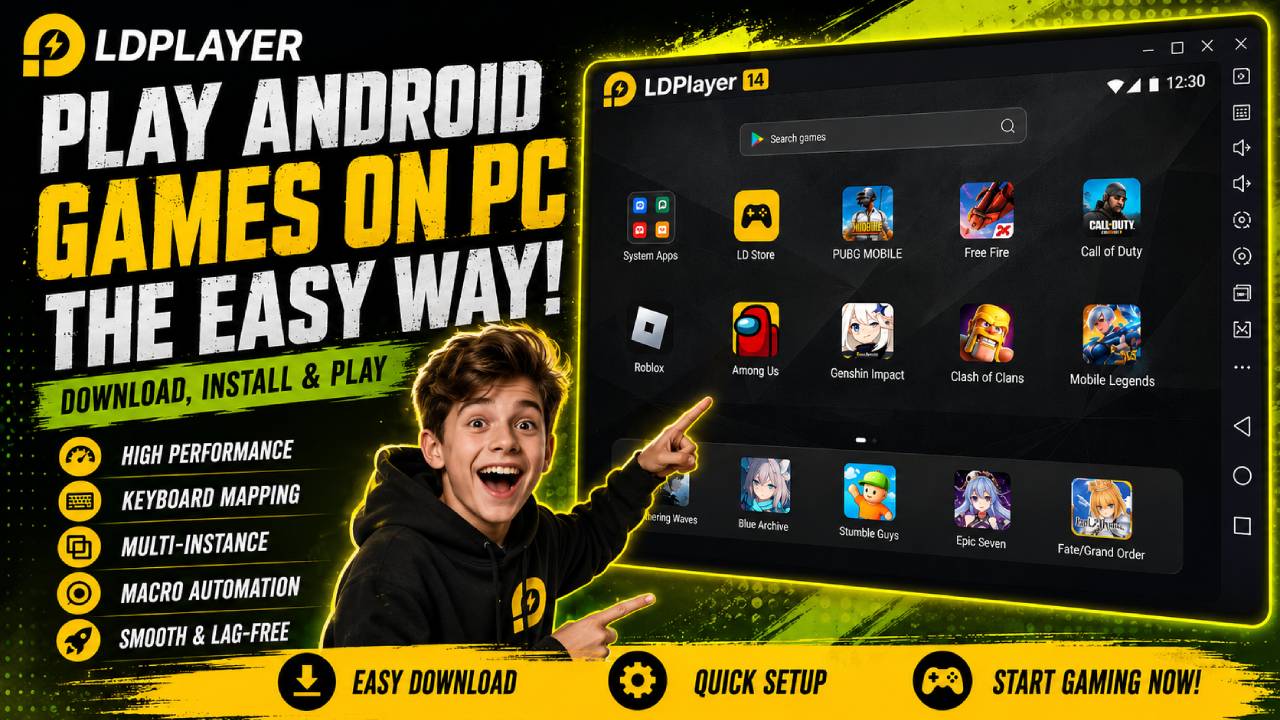
What is LDPlayer? Architecture and Core Capabilities
LDPlayer is a free desktop application developed by Shanghai Changzhi Network. It uses custom virtualization technology to run Android apps on Windows.
The emulator uses Virtualization Technology, such as Intel VT-x and AMD-V. This technology helps your computer run the virtual Android environment more efficiently.
LDPlayer translates mobile ARM architecture into x86/x64 instructions. Your desktop CPU and GPU can then execute these instructions natively.
Android Applications & Games (APK / XAPK)
                  │
          LDPlayer Kernel
   (Android 9.0 64-Bit OS Environment)
                  │
   Virtualization Layer (Intel VT / AMD-V)
                  │
  Windows OS Hardware (CPU, GPU, RAM, SSD)
Version Breakdown: LDPlayer 9 vs. Legacy Versions
LDPlayer has gone through several versions over time. Each version offers different compatibility for different PC hardware specifications.
LDPlayer 9 (Recommended)
This version uses an Android 9.0 (Pie) kernel. It supports both 32-bit and 64-bit apps.
Also, it provides lower latency and higher frame rates of up to 120+ FPS. It offers better CPU and GPU resource management as well.
LDPlayer 4
This version uses Android 7.1 (Nougat). It works well as a fallback for some older mobile games.
These games may not have proper optimization for Android 9.
LDPlayer 3
This version uses Android 5.1 (Lollipop). It is designed for low-spec or older computer hardware.
Therefore, it can work with minimal RAM and older integrated graphics.
Key Features That Make LDPlayer Stand Out
LDPlayer includes several built-in utilities for gaming, multi-account management, and system automation. These tools can make Android games easier to control on a PC.
1. Custom Keyboard Mapping & Controller Support
You can replace touchscreen controls with physical controls. LDPlayer includes pre-configured keymaps for popular games like PUBG Mobile, Free Fire, and Genshin Impact.
Also, you can create your own custom hotkeys. For example, you can set keys for directional movement and aim sensitivity. You can also map controls for skill casting and macro execution.
2. Multi-Instance Management (LDMultiplayer)
The LDMultiplayer tool lets you open several separate emulator windows on one PC.
As a result, players can manage several game accounts at the same time. You can also farm resources concurrently. In addition, you can play different games side-by-side.
3. Operation Record & Macro Automation
LDPlayer includes a built-in script recorder. It can record a series of keyboard presses and mouse clicks.
Then, you can save these actions as automated scripts. You can also loop the macros for repetitive tasks.
For example, macros can handle daily logins, farming loops, or menu navigation automatically.
4. Multi-Instance Synchronizer
The Synchronizer tool works when you run several LDPlayer instances.
It copies each action from your main instance to all open secondary instances. Therefore, you do not have to repeat the same actions manually.
This feature can help when re-rolling accounts in gacha games. It can also help when managing army movements in strategy games.
5. High Frame Rate & Graphics Optimization
LDPlayer can bypass default mobile hardware locks. As a result, it can support higher refresh rates on supported desktop monitors.
These options include 60 FPS, 90 FPS, and up to 120/240 FPS. LDPlayer also supports ultra-wide screen resolutions. In addition, it supports 2K/4K display scaling.
System Requirements for LDPlayer
Your Windows PC must meet certain hardware requirements to run LDPlayer smoothly. Below is a comparison of the minimum and recommended system specifications.
| Hardware Component | Minimum System Requirements | Recommended System Specifications |
|---|---|---|
| Operating System | Windows 7, 8, 8.1, 10, or 11 (64-bit) | Windows 10 or 11 (64-bit, latest build) |
| Processor (CPU) | Intel or AMD x86/x64 Dual-Core | Intel Core i5-10500 / AMD Ryzen 5 3600 or higher |
| Memory (RAM) | 4 GB RAM | 8 GB to 16 GB DDR4/DDR5 RAM |
| Graphics (GPU) | Integrated Intel HD / DirectX 11 / OpenGL 2.0+ | NVIDIA GeForce GTX 1660 Ti or AMD Radeon RX 580+ |
| Disk Space | 36 GB free hard drive space | 100 GB free space on a Solid-State Drive (SSD) |
| Virtualization | Hardware Virtualization (VT-x / AMD-V) enabled | Hardware Virtualization (VT-x / AMD-V) enabled |
Crucial Requirement: Hardware Virtualization (VT) must be enabled in your computer’s BIOS/UEFI settings.
Without VT, LDPlayer may have severe lag or audio distortion. It may also fail to move past the loading screen.
How to Download and Install LDPlayer (Step-by-Step)
Follow these steps LDPlayer Emulator Download and install safely on your computer.
Step 1: Download the Official Offline Installer
First, open your web browser and go to the official offline installer website: ldplayer.pro.
Next, click the yellow Download LDPlayer 9 button on the home page.
Then, save the setup file named LDPlayer9_setup_installer.exe in your preferred download directory.
Safety Warning: Do not download LDPlayer setup packages from unknown third-party websites or mirrors. Official downloads are malware-free and digitally signed.
Step 2: Run the Installation Wizard
Find the downloaded setup file on your computer. Next, right-click the file and select Run as Administrator.
Click Custom in the bottom-right corner if you want to change the default installation path. For example, you can install LDPlayer on a faster SSD instead of drive C:.
If the installer shows optional software bundles, review them first. Then, click Decline or Skip if you want a clean install.
Finally, click Install Now. Wait while the installer extracts the core system files.
Step 3: Launch and Initialize the Environment
After the installation finishes, click Start to open LDPlayer.
The first startup can take about 1-2 minutes. During this time, LDPlayer creates the virtual Android disk images.
Once the process finishes, you will see the Android desktop home screen.
Step 4: Sign In and Install Applications
Open the System Apps folder from the emulator home screen. Then, click Google Play Store.
Next, sign in with your Google account credentials.
Search for the game or application you want. For example, you can search for Clash of Clans, WhatsApp, or Free Fire. Then, click Install.
Alternatively, you can install an app offline. Simply drag and drop a local .apk or .xapk file into the LDPlayer window.
How to Optimize LDPlayer for Maximum Performance
Heavy games can sometimes have frame drops or lag. In that case, you can adjust several LDPlayer settings to improve hardware efficiency.
1. Adjust CPU and RAM Allocation
Open Settings by clicking the Gear Icon on the right sidebar. Then, go to Advanced.
Set the CPU allocation to 4 Cores. Alternatively, use about half of your physical CPU cores.
Next, set the RAM allocation to 4096M (4GB) or 8192M (8GB). Your choice should depend on your available system memory.
2. Set Resolution and DPI Settings
Open the Advanced menu. Then, select Tablet Mode with 1920×1080 (dpi 280) for standard 1080p gaming.
For a lower-end PC, reduce the resolution to 1280×720 (dpi 240). This change can greatly reduce the GPU load.
3. Force High-Performance Dedicated GPU Usage
Make sure LDPlayer uses your dedicated graphics card instead of low-power integrated graphics.
Go to:
Windows Settings → System → Display → Graphics
Next, click Browse and find dnplayer.exe inside your LDPlayer installation directory.
Select dnplayer.exe and click Options. Then, choose High Performance and save the setting.
Troubleshooting Common LDPlayer Issues
Issue 1: Emulator Stuck at 94% or 50% During Loading
This loading problem can happen when the virtual machine engine cannot start correctly. The problem may involve the graphics driver or hardware virtualization layer.
Fix A: Check that Hardware Virtualization (VT) is enabled in BIOS/UEFI.
Go to:
Task Manager → Performance → CPU
Then, check whether it shows Virtualization: Enabled.
Fix B: Update your dedicated GPU drivers to the latest version. This applies to NVIDIA GeForce and AMD Radeon graphics cards.
Fix C: Turn off Windows Hyper-V, Virtual Machine Platform, and Windows Sandbox if they cause a conflict.
You can find these options under “Turn Windows features on or off.”
Issue 2: Screen Freezing or White Screen on Game Launch
Fix A: Open:
LDPlayer Settings → Model
Then, change the default device model to a high-end preset. For example, choose Samsung Galaxy S22 Ultra or ROG Phone 5.
Fix B: Change the graphics rendering mode between OpenGL and DirectX. You can find this option inside the emulator display settings.
Issue 3: Micro-Stuttering and FPS Drops
Fix: Turn off vertical sync (V-Sync) in your GPU control panel.
Also, set your Windows Power Plan to High Performance.
Finally, make sure you install LDPlayer on an SSD drive. Avoid using a traditional mechanical Hard Disk Drive (HDD).