Running full x86 and x64 Windows games on an Android device needs a lot of computing power. Winlator handles this using Wine, Box86/Box64 translation, and Vulkan rendering layers. However, the default settings focus more on game compatibility than maximum speed.
So, you need to tune the container settings for your mobile hardware. The right settings can improve framerates, reduce micro-stutters, and help prevent memory crashes. This How To Optimize Winlator guide explains the configurations, graphics drivers, and CPU settings needed to get more performance from Winlator.
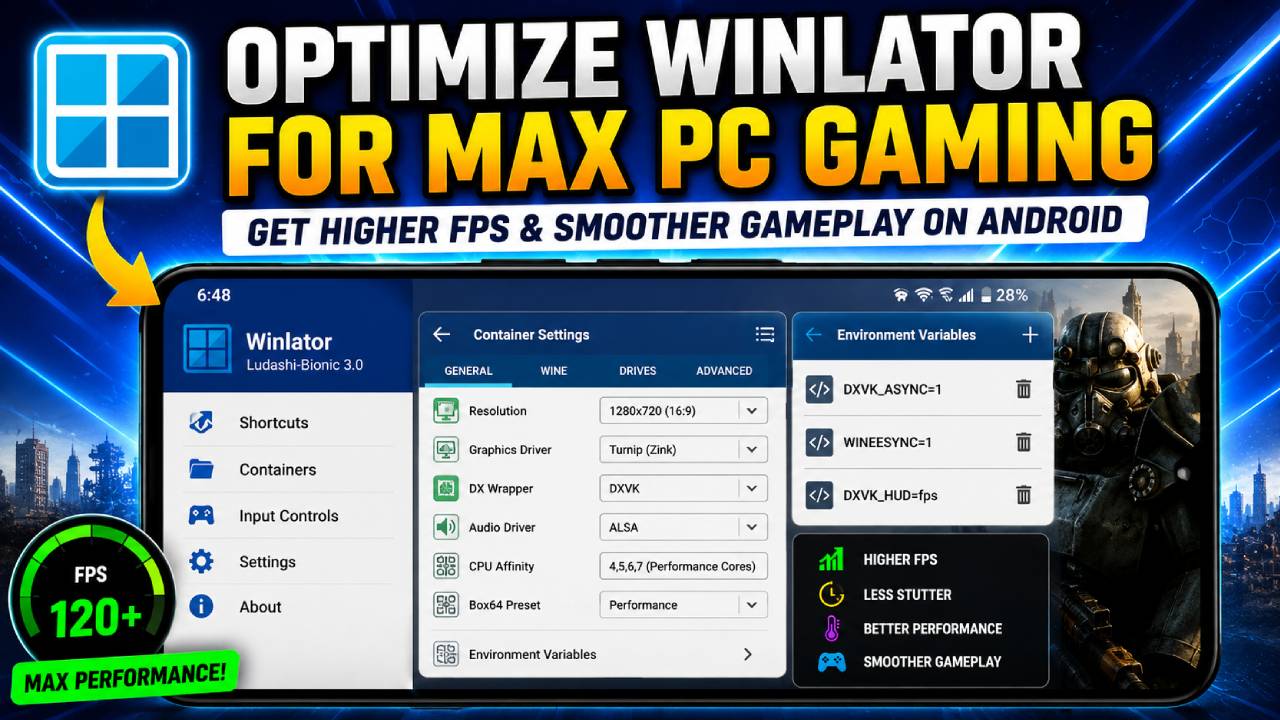
Core Container Configurations (The Foundation)
Your container works as the virtual environment where your Windows games run. Therefore, incorrect base settings can limit your hardware before the game even starts.
Screen Size and Resolution
Running a Windows environment at your phone’s native resolution can greatly reduce performance. Many modern phones use 1440p or even higher resolutions. So, always set a custom resolution inside the Container Settings.
For 2D and lightweight 3D games, set the resolution to 1280×720 (16:9).
For heavy 3D games, such as Fallout 4 and GTA V, use 800×600 (4:3) or 960×540 (16:9).
You can also stretch the image to fill your phone screen. This option is available in the main settings menu.
Matching Graphics Drivers to Your SoC
Turning Windows DirectX calls into Android OpenGL or Vulkan instructions takes a lot of processing power. Therefore, you need a graphics driver that matches your System on a Chip, or SoC.
| Your Device Hardware | Recommended Graphics Driver | Why It Works |
|---|---|---|
| Snapdragon (Adreno GPU) | Turnip (Zink) | This custom Vulkan driver targets Adreno hardware. It can provide large FPS improvements. |
| MediaTek / Exynos (Mali GPU) | VirGL | Mali GPUs lack full Vulkan extension support. VirGL uses OpenGL instead, which improves compatibility but lowers speed. |
Hardware Note: Mali GPU devices have serious hardware-level limits when running Winlator. These include Google Pixel, many Samsung Galaxy phones, and many MediaTek devices.
As a result, you should expect much lower performance on Mali hardware than on a similar Snapdragon device.
Tuning the DX Wrapper
The DX Wrapper translates Microsoft’s DirectX API into instructions that your Android GPU can process. Therefore, using the wrong wrapper can cause graphics problems or immediate game crashes.
DXVK: This is the main choice for modern games. It translates DirectX 9, 10, and 11 into Vulkan. Use DXVK for about 90% of 3D games released after 2006.
VKD3D: This option translates DirectX 12 into Vulkan. Only use it when a game specifically needs DirectX 12.
WineD3D: This is an older OpenGL translator. Use it mainly with older games that use DirectX 8 or earlier. You can also try WineD3D when DXVK gives you a black screen.
CNC-DDraw: This option works well for classic 2D isometric games. Examples include Command & Conquer, Fallout 1, and Fallout 2. It can fix cursor rendering problems and incorrect scrolling speed.
Fine-Tuning CPU Affinity and Emulation Settings
Modern Android processors use a big.LITTLE design. This design combines low-power efficiency cores with faster performance cores.
However, Android’s task scheduler may send demanding Winlator tasks to weaker efficiency cores. As a result, games can suffer from heavy stuttering.
Configuring Processor Affinity
You can manually assign Winlator to your device’s most powerful CPU cores.
Open your Container Settings and scroll down to CPU Details.
Next, uncheck CPU cores 0, 1, 2, and 3. These cores are usually the low-power efficiency cores.
Then, leave cores 4, 5, 6, and 7 checked. These are normally the Performance and Prime cores.
As a result, the game runs on the fastest CPU cores available. This change can greatly reduce frame pacing problems.
Box86 and Box64 Presets
Box86 and Box64 control how your ARM processor reads x86 code.
Change the default preset from Compatibility to Performance.
The Performance preset disables strict memory alignment checks. It also enables more aggressive JIT, or Just-In-Time, compilation.
However, some games may become unstable with this setting. If a game crashes during a loading screen, switch back to Compatibility.
Leveraging Advanced Environment Variables
Winlator lets you add custom environment variables directly to Wine. You can find these options under the Environment Variables tab inside your container.
Adding certain variables can fix specific performance problems.
DXVK_ASYNC=1: This is an important variable for 3D games. It lets shaders compile asynchronously in the background.
Without this setting, a game may freeze for around half a second when a new visual effect appears. Therefore, enabling it can reduce these shader-related pauses.
WINEESYNC=1: This enables Eventfd synchronization. It reduces CPU overhead on processors with several cores.
As a result, CPU-heavy games may gain around 10-15% more FPS.
DXVK_HUD=fps: This adds a small FPS counter from the Vulkan renderer. Therefore, you can easily check how your Winlator settings affect gaming performance.
Troubleshooting Common Winlator Bottlenecks
Even with good settings, PC emulation on ARM remains highly experimental. Therefore, games can still have problems.
When something goes wrong, use these steps to find the likely cause.
Game Crashes Immediately on Launch
An immediate crash usually points to a missing dependency or a DX Wrapper conflict.
First, change DXVK to WineD3D and try starting the game again.
If the game still crashes, open the Winlator start menu. Then install the required Visual C++ Redistributables and Mono.
Mono is the open-source alternative to the .NET framework.
Severe Audio Crackling or Lag
Heavy CPU usage can cause the audio thread to lose synchronization. This problem can create crackling, broken audio, or noticeable sound lag.
Go to the container settings first. Then change the Audio Driver from PulseAudio to ALSA.
If the audio still crackles, increase the Audio Buffer Size.
A larger buffer adds a small amount of audio delay. However, it can make sound delivery much smoother.
Invisible Textures or “Rainbow” Artifacts
Missing textures or strange rainbow colors usually point to a graphics driver problem. The driver may not understand the game’s shader instructions correctly.
If you use a Snapdragon device with Turnip, update to a newer custom Turnip driver release.
Newer driver versions often come with Winlator forks such as Winlator Frost.
However, Mali GPU users have fewer options. If you use a Mali device, change the wrapper to WineD3D.
This change gives priority to more accurate graphics rendering instead of higher speed.