Watching movies, live sports, and TV shows on a small phone screen is not always comfortable. A larger screen gives a better viewing experience, especially when streaming HD or Full HD content. Many users search for a Dooflix web version because they want to watch content on a computer, laptop, or smart TV instead of a mobile phone.
However, there is one important thing to understand before getting started. Dooflix does not currently offer an official web version that runs directly inside a browser. Unlike popular streaming platforms that work through a website, Dooflix is mainly designed as an Android APK application.
Because of this design, users need to use other methods to enjoy Dooflix on larger screens. This guide explains the safest and most effective ways to run Dooflix on Windows PCs, macOS devices, Android TVs, Fire TV devices, and televisions using screen mirroring.
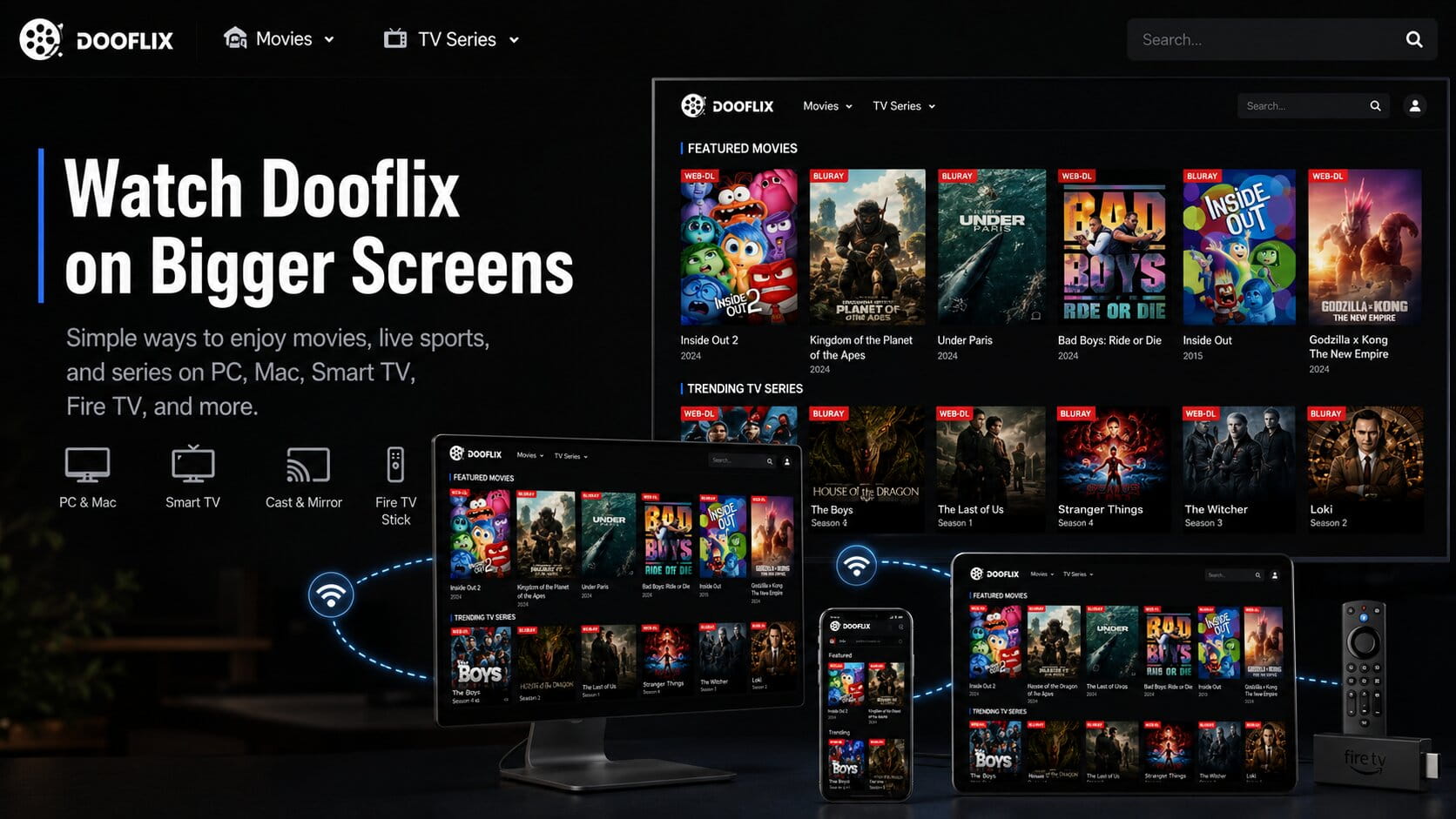
Understanding the Dooflix Web Version
Many websites claim to provide direct browser links for Dooflix. In reality, there is no official browser-based platform that allows users to stream content through a standard website address.
Dooflix works as an Android application. Therefore, it needs an Android environment to operate correctly. Since computers and most televisions do not run Android apps by default, additional methods are required.
There are three reliable ways to use Dooflix on a larger screen:
- Android emulators for Windows and macOS
- Wireless screen casting and mirroring
- Direct installation on Android TV and Fire TV devices
Each method has its own advantages depending on the device being used.
Method 1: Running Dooflix on Windows and macOS
The most common way to use Dooflix on a computer is through an Android emulator. An emulator creates a virtual Android environment inside the operating system. This allows Android applications to run on desktop hardware.
Popular emulator options include BlueStacks and LDPlayer. Both support hardware acceleration, which helps improve video playback and reduces lag during streaming.
System Requirements
Before installing an emulator, check that the computer meets the following requirements:
- Operating System: Windows 10, Windows 11, or macOS 11 and above
- Processor: Intel Core i3, AMD Ryzen 3, or similar processor
- Virtualization Support: VT-x or AMD-V enabled in BIOS
- RAM: At least 4GB, with 8GB recommended
- Storage: Minimum 5GB of available disk space
Meeting these requirements helps prevent crashes, lag, and playback issues.
Installation Steps
1. Download an Emulator
Visit the official website of BlueStacks or LDPlayer and download the correct version for the operating system.
2. Install the Emulator
Run the installation file and follow the setup instructions displayed on the screen. Allow administrator permissions if requested.
3. Configure Performance Settings
Open the emulator settings menu.
Under the Performance section:
- Assign at least 2 CPU cores
- Allocate 2048MB or more RAM
- Select OpenGL graphics mode if available
These settings generally provide smoother video playback.
4. Obtain the Dooflix APK
Download a clean and secure APK file from a trusted source. Always verify the file before installation.
5. Install the APK
Most emulators provide an Install APK option.
Users can either:
- Drag and drop the APK into the emulator window
- Use the Install APK button available in the emulator menu
The installation process usually takes only a few moments.
6. Launch the Application
After installation, open Dooflix from the emulator home screen and start streaming content on the larger display.
Method 2: Installing Dooflix on Android TV and Fire TV Devices
Users with Android TV devices or Amazon Fire TV products can install Dooflix directly on their television. This removes the need for a computer and provides a more convenient viewing experience.
Supported devices may include:
- Fire TV Stick
- Fire TV Cube
- Fire TV Stick 4K Max
- Android TV televisions
- Android TV boxes
Installation Steps
1. Enable Unknown Sources
Open the Settings menu.
For Fire TV:
Settings → My Fire TV → Developer Options
For Android TV:
Settings → Device Preferences → Security
Enable installation from unknown sources.
2. Install the Downloader App
Open the device app store and search for Downloader.
Install the application and allow the required permissions.
3. Enter the APK Download Address
Launch Downloader and enter the direct URL where the Dooflix APK file is hosted.
The application will begin downloading the installation package.
4. Install the APK
Once the download reaches 100%, choose Install.
After installation finishes, select Done.
5. Remove the APK File
Deleting the downloaded APK file helps free up storage space on the device.
6. Improve Navigation if Needed
Some Android applications are designed mainly for touch screens.
If navigation becomes difficult with a TV remote, users can install a virtual mouse tool such as Mouse Toggle for Fire TV. This makes menu navigation much easier.
Method 3: Wireless Screen Mirroring
Some users prefer not to install software on a computer or television. In that case, screen mirroring can be a simple solution.
Screen mirroring sends the phone display directly to a television over the local Wi-Fi network.
Android Screen Mirroring
1. Connect Devices to the Same Wi-Fi Network
The smartphone and television must be connected to the same wireless network.
A 5GHz Wi-Fi connection is recommended because it usually provides better speed and lower latency.
2. Open Quick Settings
Swipe down from the top of the Android screen.
Look for one of the following options:
- Cast
- Smart View
- Wireless Projection
- Screen Share
3. Select the Television
Choose the television or streaming device from the available list.
4. Start Streaming
Open Dooflix on the phone and play the desired content.
Rotate the phone horizontally to enable full-screen viewing on the television.
AirPlay and iOS Devices
iPhones and iPads cannot install Android APK files directly.
Users can instead mirror compatible content using AirPlay-supported devices or screen receiver software running on a Mac or computer.
To start mirroring:
- Open Control Center.
- Tap Screen Mirroring.
- Select the available AirPlay receiver.
- Complete the connection process.
The display will then appear on the larger screen.
Troubleshooting and Performance Optimization
Occasionally, users may experience playback problems while streaming. Most issues can be fixed with simple adjustments.
Black Screen with Audio
Possible Cause
- DRM conflicts
- Graphics driver issues
- Hardware acceleration problems
Solution
- Disable hardware acceleration inside the emulator
- Update NVIDIA, AMD, or Intel graphics drivers
- Restart the emulator and try again
Video Lag and Frame Drops
Possible Cause
- Low CPU allocation
- Insufficient memory
- Background applications consuming resources
Solution
- Increase CPU allocation from 1 core to 4 cores
- Assign additional RAM to the emulator
- Close unnecessary programs running in the background
Connection Errors
Possible Cause
- DNS issues
- Network restrictions
- Regional access limitations
Solution
- Flush the DNS cache using:ipconfig /flushdns
- Restart the internet connection
- Use a stable network route if needed
Incorrect Screen Size or Aspect Ratio
Possible Cause
Mobile display settings may not scale correctly on large screens.
Solution
Open emulator display settings and switch to:
- Tablet Mode
- 1920×1080 resolution
- 16:9 landscape mode
This usually provides a better viewing experience on monitors and televisions.
Final Thoughts
Although many users search for a Dooflix web version, there is currently no official browser-based platform available. Since Dooflix operates as an Android application, it requires an Android environment to run.
For desktop users, Android emulators provide the easiest solution. For television users, direct installation on Android TV or Fire TV devices offers a more convenient setup. Meanwhile, wireless screen mirroring remains a quick option for those who prefer not to install additional software.
Choosing the right method depends on the available hardware, but all three approaches make it possible to enjoy Dooflix content on a much larger screen.