EasyShare is a file transfer and phone data moving tool made by Vivo Mobile Communication Co., Ltd. It works across Android, iOS, Windows, and macOS devices.
EasyShare helps users move photos, 4K videos, documents, apps, and other phone data. It does not need mobile data or an internet connection. It also does not use cloud storage.
The app creates a direct wireless link between devices. Because of this, users can move files quickly without data limits.
EasyShare can also help when changing to a new phone. Its Phone Clone feature can move many types of data from an old phone to a new one.
This EasyShare FAQs guide explains how to set up EasyShare, move files, use Phone Clone, connect to a computer, and fix common problems.
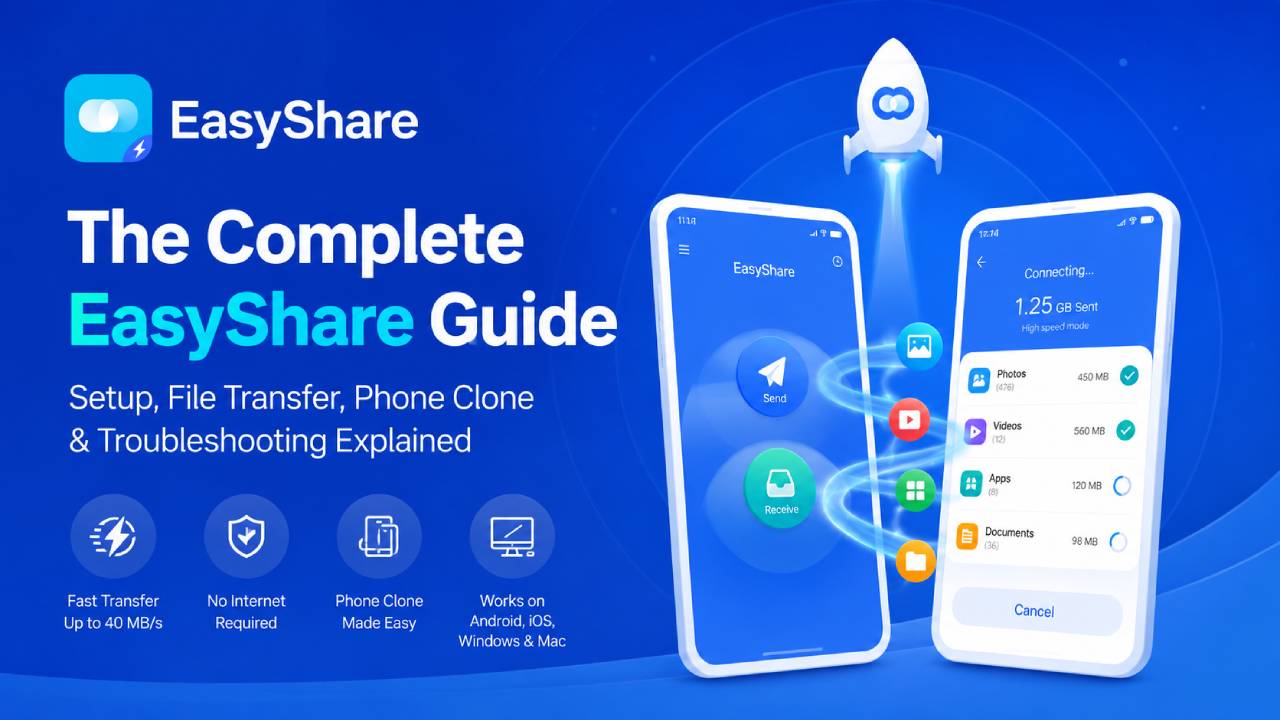
What Is EasyShare and How Does It Work?
EasyShare uses a direct local connection between two devices.
It can create this link through Wi-Fi Direct or a temporary personal hotspot. The files move straight from one device to another.
The transfer does not pass through cloud servers. It also does not need a home Wi-Fi router.
Because of this direct link, EasyShare can reach speeds of up to 40 MB/s.
[Sender Device] ---> Direct P2P Wi-Fi or Hotspot ---> [Receiver Device]
                         Up to 40 MB/s
                         No Internet Needed
The actual speed can change based on the phone, wireless band, distance, and nearby signal problems.
Main Features and Device Support
EasyShare offers more than normal Bluetooth sharing. It supports large files, several operating systems, and full phone transfers.
| Feature | Details |
|---|---|
| Supported Platforms | Android, iOS, Windows, and macOS |
| Highest Transfer Speed | Up to 40 MB/s through a 5 GHz Wi-Fi Direct connection |
| Internet Needed | No. It uses a local P2P wireless link |
| File Size Limit | No fixed file size or batch limit |
| Phone Clone | Moves contacts, call logs, messages, media, apps, and documents |
| Phone Clone Support | Android to Android and iPhone to Android |
| Ads | No ads or pop-ups |
| Desktop Connection | Supports backup and file transfer on Windows and macOS |
Phone Clone FAQs: Moving Data to a New Phone
How Do I Use Phone Clone?
Follow these steps to move data from an old phone to a new phone.
- Open EasyShare on both phones.
- Tap Phone Clone at the bottom of both screens.
- On the old device, tap Old Phone.
- On the new device, tap New Phone.
- A QR code will appear on the old phone.
- Use the new phone to scan that QR code.
- The phones will create a private P2P Wi-Fi connection.
- Select the data you want to move.
You may see options for contacts, call logs, messages, photos, videos, apps, and documents.
- Enter the old phone’s PIN or password when asked.
This step gives EasyShare permission to read protected phone data.
- Tap Start Phone Clone.
Keep both phones close together until the process ends. A distance of one meter or less usually gives a better connection.
Do not close EasyShare during the transfer. Also, avoid switching Wi-Fi networks.
What Data Can EasyShare Move?
EasyShare can move many common types of phone data.
Supported data may include:
- Contacts
- SMS messages
- Call logs
- Camera photos
- Saved videos
- Music and audio files
- Documents
- App installation files
- Other public files
However, some data may not move because of phone security rules.
What Data Cannot Be Moved?
App Data Between Different Phone Brands
EasyShare may move the app itself, but it may not move the data stored inside that app.
This often happens when moving between different phone brands.
For example, the app may appear on the new phone. However, saved logins, game progress, cached files, and private settings may not move.
Android keeps each app’s private data inside a protected area. This is called app sandboxing.
Files Inside Secure Vaults
EasyShare may not copy files stored inside Vivo File Safe, hidden folders, or third-party vault apps.
These areas use extra protection. Therefore, EasyShare cannot freely read their contents.
Move those files out of the secure folder before starting the transfer.
Unsupported Apps
Some old apps may not work on a newer phone.
For example, an app made for an older Android version may not support the new device. Also, some older apps may not support 64-bit systems.
EasyShare may mark these apps as unsupported and skip them.
File Transfer FAQs: Phones, Computers, and Other Devices
How Do I Send Files Between Two Phones?
Use these steps for a normal file transfer.
- Open EasyShare on both phones.
- Tap Send on the phone that has the files.
- Tap Accept or Receive on the other phone.
- Select the photos, videos, documents, ZIP files, or other items.
- EasyShare may show a QR code.
- Scan the code with the receiving phone.
- Wait for the phones to connect.
- Tap Send to begin the transfer.
Keep the phones close together during the process.
The receiving phone may also search for nearby EasyShare devices. In that case, select the correct device name from the list.
How Do I Connect EasyShare to a Windows PC or Mac?
EasyShare can also move files between a phone and a computer.
First, install the official EasyShare desktop client on the Windows PC or Mac.
Then follow these steps:
- Open the EasyShare desktop app.
- Choose a connection method.
The available methods may include a Wi-Fi connection or a USB data cable.
- For Wi-Fi transfer, connect the phone and computer to the same local network.
- Open EasyShare on the phone.
- Open the scanner inside the mobile app.
- Scan the QR code shown on the computer screen.
- Choose Backup, Restore, or the file transfer option.
- Select the files or data you want to move.
You can use this method to back up photos, videos, message files, and other phone data to the computer’s storage.
A USB cable may give a more stable connection in places with heavy wireless interference.
Where Are Received Files Saved on Android?
On Android, open EasyShare and tap the Clock or History icon.
Then choose View Storage Location.
Most received files appear in this folder:
Internal Storage > EasyShare
Photos and videos may also appear in the phone’s Gallery app.
Some phones may place app files inside an Apps or APKs folder.
The exact location can change based on the phone brand and Android version.
Where Are Received Files Saved on iPhone?
iOS has stricter file storage rules.
Transferred photos and videos usually appear in the Apple Photos app.
Documents normally appear in:
Files App > EasyShare
Some file types may need another supported app before they can open.
EasyShare Troubleshooting and Error Fixes
Wi-Fi or Mobile Data Disconnects After Opening EasyShare
This is often normal.
EasyShare may turn off the current Wi-Fi or mobile data link. It does this because the phone’s wireless hardware must create a private local connection.
Do not reconnect to another Wi-Fi network while the transfer is active.
After closing EasyShare, the phone should return to its earlier Wi-Fi or mobile data settings.
The QR Code Does Not Scan
Several issues can stop QR pairing.
First, make sure location access is turned on for both phones.
Android may need location permission to search for nearby Wi-Fi devices.
Next, clean the camera lens and raise the screen brightness on the phone showing the code.
Also, hold the phones steady and keep the full QR code inside the scanner box.
When it still fails, turn Wi-Fi and Bluetooth off and on again. Then restart EasyShare.
A 5 GHz connection problem may also block pairing on some older devices.
Transferred Apps Do Not Install
Modern Android versions block apps from installing in the background without clear permission.
Therefore, EasyShare may transfer an APK file without installing it.
To install the app manually:
- Open the phone’s Files or File Manager app.
- Go to the Apps or APKs folder.
- Find the transferred APK file.
- Tap the file.
- Android may show a security warning.
- Turn on Allow from this source for the file manager.
- Return to the APK file.
- Tap Install.
Only install apps that came from a trusted device or safe source.
Transfer Speed Drops Below 5 MB/s
Slow speed can happen because of distance, signal problems, or a slower Wi-Fi band.
Move both devices closer together. A distance of about 30 centimeters may improve the speed.
Also, remove thick phone cases when they block the wireless signal.
Turn off Bluetooth on nearby older devices when they cause interference.
Avoid placing the phones near microwaves, wireless speakers, or crowded routers.
EasyShare may also fall back to a 2.4 GHz connection. That band often runs more slowly than 5 GHz.
The phone’s storage speed can also affect the final transfer rate.
Phone Clone Stops During the Transfer
Battery-saving tools may close EasyShare while it runs in the background.
Turn off Battery Saver on both phones before starting Phone Clone.
Next, open the recent apps screen and lock EasyShare in place, when the phone offers that option.
Keep both screens awake during the transfer.
Also, make sure both phones have enough battery power.
A low battery may cause the phone to reduce wireless activity.
Restart both phones and begin again when the connection keeps failing.
Why Does Mobile Data Turn Off?
EasyShare needs the phone’s wireless chip to create a local hotspot or Wi-Fi Direct link.
Because of this, the phone may stop using normal mobile data or outside Wi-Fi for a short time.
This direct connection lowers delay and avoids mobile data use.
No files need to travel through the internet.
Once EasyShare closes, the phone should restore the earlier network connection.
What Should I Do When Apps Will Not Install Automatically?
Android 11, Android 12, Android 13, Android 14, and newer versions use strict app installation rules.
Third-party apps cannot silently install other apps in the background.
Therefore, the transferred app may remain as an APK file.
Open the default Files or File Manager app.
Then go to the Apps or APK section.
Select the transferred app and tap it.
When Android asks for permission, turn on Allow from this source.
After that, return to the file and complete the installation.
The app may still fail when it does not support the new Android version.
EasyShare Compared With Other Transfer Methods
| Feature | EasyShare P2P | Bluetooth 5.0 | Cloud Storage | USB Cable |
|---|---|---|---|---|
| Real-World Speed | Up to 40 MB/s | Around 2 MB/s | Depends on internet speed | Around 30 MB/s to over 300 MB/s |
| Internet Needed | No | No | Yes | No |
| Setup | QR code pairing | Manual pairing | Account login | Cable or adapter |
| Phone Migration | Full Phone Clone | Single files only | Cloud backup | Manual file copy |
| Large File Support | Yes | Slow for large files | Depends on storage plan | Yes |
EasyShare is useful when users need a wireless transfer without internet access.
Bluetooth works for small files, but it usually takes longer.
Cloud storage works across many places. However, it needs a good internet connection and enough online storage.
USB cables can offer high speeds. Still, users need the correct cable, port, or adapter.
Frequently Asked Questions
Does EasyShare Need Internet or Mobile Data?
No.
EasyShare uses local wireless tools, including Wi-Fi Direct and a private hotspot.
It can work without an active internet connection.
It may also work in places with no mobile signal.
Is There a File Size Limit?
EasyShare does not set a fixed limit on file size or batch size.
Users can send large 4K videos and large folders.
However, the receiving phone must have enough free storage.
The phone’s file system must also support the file size.
Can EasyShare Send Files Larger Than 50 GB?
It may send files larger than 50 GB when both devices support the file and have enough storage.
Still, the transfer may take time.
Battery level, wireless speed, file system limits, and free space can affect the result.
Keep both devices charging during very large transfers.
Is EasyShare Free From Ads?
EasyShare is an official Vivo tool with an ad-free interface.
It does not normally show third-party ads or pop-ups.
Files move directly between the connected devices.
They do not need to pass through an outside cloud server during a local transfer.
Will Phone Clone Delete Existing Data?
Phone Clone normally adds transferred data to the new phone.
It does not erase all existing photos, contacts, or documents.
When duplicate files exist, the phone may merge them, rename them, or keep both copies.
The result can change based on the file type and phone software.
Can EasyShare Move Data From an iPhone to a Vivo Phone?
Yes.
An iPhone user can install EasyShare and connect to a supported Android or Vivo phone.
The Android phone may create a private hotspot and show a QR code.
The iPhone scans that code to create the local connection.
After pairing, users can select supported files and data.
However, iOS security rules may stop some app data, system settings, messages, or protected files from moving.
Photos, videos, contacts, and supported documents are usually easier to transfer.
Does EasyShare Use Cloud Storage?
No.
EasyShare mainly sends files through a direct local connection.
The files do not need to upload to an online storage service first.
This helps users avoid internet speed limits and mobile data charges.
Why Is the Transfer Speed Different on Each Device?
Transfer speed depends on several things.
These include the Wi-Fi band, phone hardware, storage speed, file type, distance, and signal interference.
Many small files may transfer more slowly than one large file.
Older phones may also use slower wireless hardware.
For better speed, keep the devices close and stop other wireless tasks.
Can EasyShare Work in Flight Mode?
It may work in flight mode when Wi-Fi can be turned back on.
After enabling flight mode, manually enable Wi-Fi.
Then open EasyShare and create the local connection.
The steps may change based on the phone model and operating system.